How to Connect ST to a Corporate Database
Completion time: 1 hour
Follow the steps below to connect ST to an existing on-premise corporate database. This must be a SQL Server or SQL Express database on your server.
Applies to: On-premise client application users
Does not apply to: Cloud site users who access with a browser
Wait! Do you access ST in the cloud?
I.e. a cloud site?
If so, this article does not apply to you.
Wait again! Don't have a corporate database on SQL already?
If you don't already have a SQL database on your server, click here to set one up. This is an advanced task that may require IT support. Check with your ST administrator.
1. Find your SQL credentials file
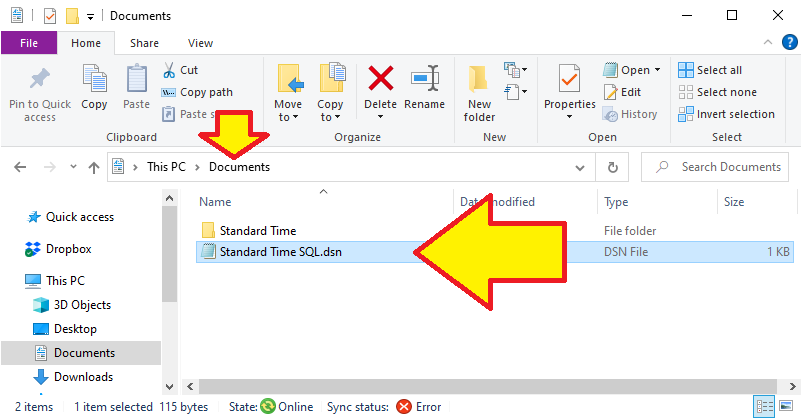
Your credentials file is usually located in your Documents folder, and is usually named "Standard Time SQL.dsn". Locate this file. If you don't have one, contact your IT support person or ST administrator. This file can be copied from a workstation that has already been connected to the SQL database.
2. Open ST
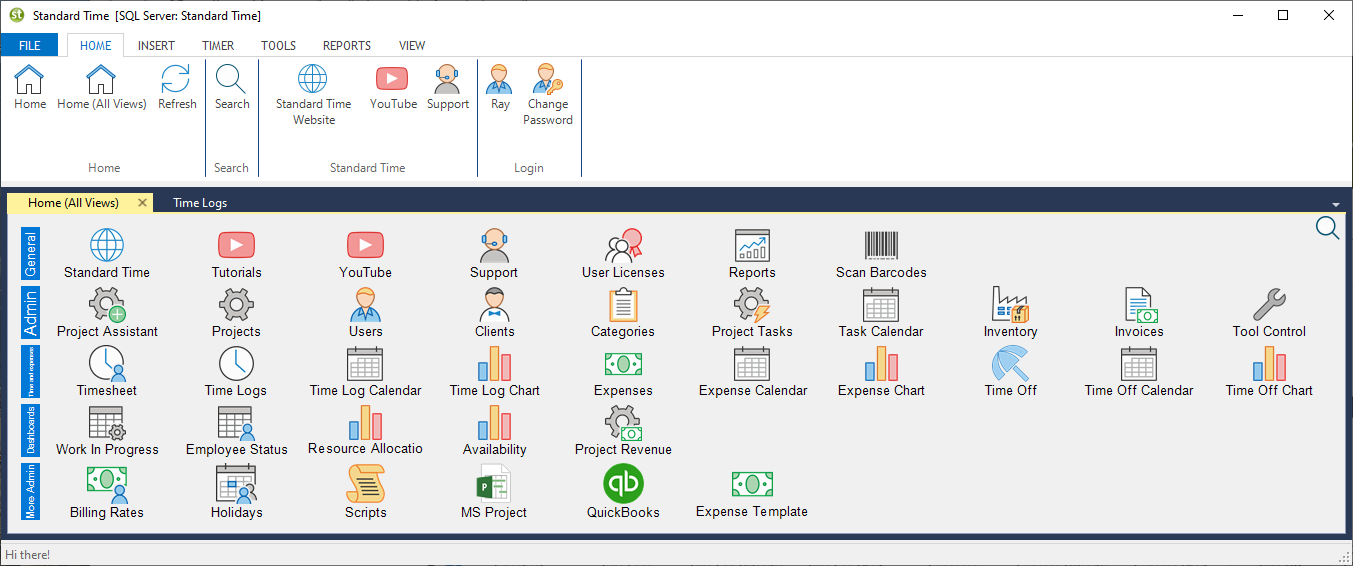
Find the Standard Time icon on your desktop. Double-click to open it.
If you don't have a Standard Time icon, you must install it from the link below.
Download Standard Time:
https://www.strdtime.com/download/Standard%20Time.msi
3. Choose credentials file
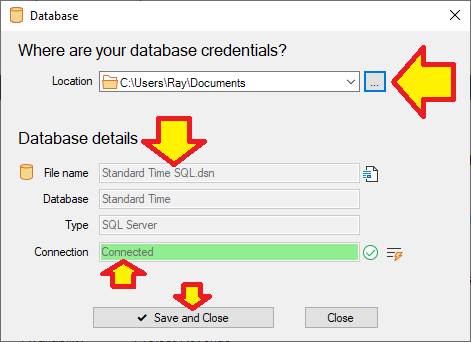
- Choose File, Database (from within ST)
- Click the "..." button
- Navigate to the Documents folder
- Choose "Standard Time SQL.dsn"
- ST should connect to SQL without errors
- Click OK
- ST will restart to apply the changes
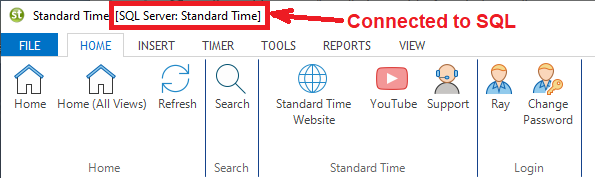
- Look for the words "SQL Server: Standard Time" in the title bar to signify connection
4. Optionally connect BC to corporate database
If you'll be scanning barcodes, consider using a program named "BC" for scanning.